space-tree: Tree-Based Workspace Management for Emacs
Table of Contents
1. About emacs workspaceManagement tooling
Figure 1: JPEG produced with DALL-E 4o
Modern UIs are over-engineered and excessive. This is easy to say in an age where people walk around with computers attached to their faces, only to get… a subpar user experience. It's also easy to say as a developer who uses Emacs, the best TUI I've ever used for people who primarily interface with text.
2. The Workspace Problem workspaceManagement
I've recently seen hilarious demonstrations of people pinning AR screens around their houses in an overambitious attempt to organize their open applications. AR headsets are an over-engineered solution to a problem that all PC users suffer from, and they solve it with the wrong tools. Ocular tracking, accelerometers, gyroscopes, proprietary software… all of this, when simple 2D screens are already extremely good at managing workspaces.
The math doesn't math, especially after you factor in the astronomical price tags of these AR devices.
Here's the design smell: we want a software solution for personal computing, but AR brings in a hardware dependency that isn't even a personal computer. The math doesn't math, especially after you factor in the astronomical price tags of these AR devices. AR for workspace management is less of a real improvement and more of an indulgence in "shiny objects".
I like to shake my fist at over-engineering by creating something simple, so I built space-tree, a lightweight Emacs package that models workspaces as a tree rather than a flat or fixed-dimension list. I'd been annoyed by the workspace situation in my Emacs config for a while. What started as a few convenience functions in my init.el eventually grew into a proper package. But before I get into what I built, it's worth looking at what already exists.
3. Existing Solutions in Emacs emacs comparison
Emacs has several workspace managers. Eyebrowse gives you a flat, numbered list of window configurations, basically virtual desktops. perspective.el and persp-mode (separate packages despite the similar names) go further, scoping buffers to named workspaces with persistence across sessions. These are well-designed tools, but in my experience they share a few limitations:
3.1. Flat Lists
Some workspace managers have too few dimensions. Eyebrowse organizes workspaces in a flat 1-dimensional list. With tools like tmux and Chrome, I've grown accustomed to organizing my workspaces into at least 2-dimensional layouts, so the flatness of eyebrowse is an issue for my brain. Certain contexts (developing a suite of unit tests across multiple modules, for instance) demand more than 2 dimensions of organization.
3.2. Fixed Dimensions
Even when a workspace manager has more than one dimension, the number of dimensions tends to be fixed. tab-bar-mode is a row of tabs. Always one row, always flat. But I'm often working with contexts of mixed complexity. A quick bug fix needs one workspace; a multi-file refactor with tests needs a whole subtree. You end up either over-structuring simple tasks or under-structuring complex ones.
3.3. Naming Tax
Most workspace managers want a name and a location upfront. persp-mode prompts you to name every workspace at creation time. This is friction. Sometimes I just want to branch off, explore something, and figure out later whether it deserves a name and a permanent place. Or never. Most of my workspaces don't need names. They need to exist for twenty minutes and then disappear.
What I wanted was a workspace system with arbitrary depth, no mandatory naming, and enough flexibility to match the structure to the task, not the other way around.
4. How space-tree Works emacs dataStructures
Workspaces form a tree. Each node stores a window configuration (which buffers are displayed in which windows at a given moment). You can branch off from any node to create child workspaces, and navigate the tree laterally between siblings or vertically between parent and child.
1 ─── 1.1 ─── 1.1.1
 │         └── 1.1.2
 │
 └── 1.2 ─── 1.2.1

2 ─── 2.1
This gets you:
- Arbitrary depth. Nest workspaces as deep as the context demands.
- Mixed complexity. A bug fix is a leaf node. A complex investigation gets its own subtree with as many children as it needs.
- No upfront naming. Create a space, start working, name it later. Or don't.
Say I'm chasing a failing test. I have my test runner open, but I need the test source alongside the implementation, and I want to cross-reference stack traces without losing any of those layouts. With space-tree, I branch from my runner into a space for the test source, branch again for the implementation, and create a sibling for the logs. Each space preserves its own window arrangement. When I fix the bug, I jump back to the runner and all the investigative context is still there, organized the way I actually thought about the problem.
4.1. Where space-tree Fits in Emacs
space-tree doesn't replace anything. If you already use perspective.el for buffer scoping, space-tree layers on top and manages window configurations independently. It's also orthogonal to tab-bar-mode. You can use tab-bar tabs and space-tree spaces in the same session without conflict.
Emacs already lets you snapshot the current arrangement of windows and buffers with current-window-configuration. space-tree manages a tree of these snapshots and restores them when you switch spaces. Spaces live in memory for the duration of your session. They're not persisted across restarts. I may add that later, but frankly I haven't missed it. The tree is cheap to rebuild and my workflows change day to day anyway.
5. Key Interactions emacs demonstration
Here's what it actually looks like in use.
5.1. Navigation and Branching
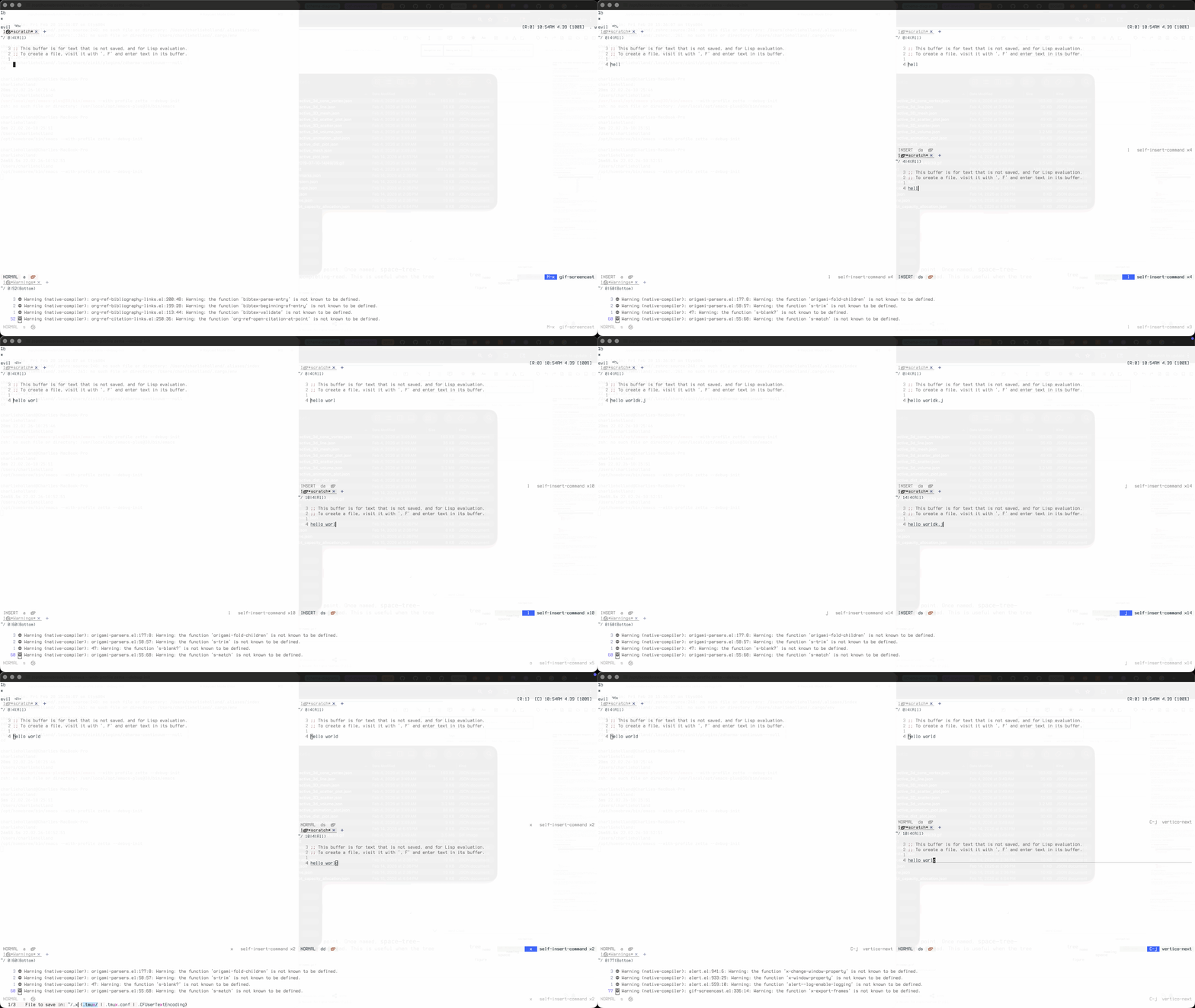
Most of the time you're doing this: creating a sibling, branching into a child, moving laterally between siblings, jumping back up to the parent.
5.2. Naming and Switching
Spaces are unnamed by default, but you can name them at any point. Once named, space-tree-switch-space-by-name lets you jump directly via completing-read. This is useful when the tree gets deep and lateral navigation would be tedious.

Figure 2: Naming a space and switching to it via completing-read
5.3. Reusing Layouts
Once you've set up a window layout you like, you can duplicate it elsewhere in the tree with copy and paste. Useful when you want the same split arrangement for a different task. And when you're bouncing between two active contexts, space-tree-go-to-last-space gives you a quick toggle, like alt-tab for your workspaces.

Figure 3: Copying a workspace layout and pasting it into a new branch

Figure 4: Toggling between two active workspaces
5.4. Cleanup and the Modeline
When you're done with a branch of work, space-tree-delete-space prunes it from the tree. The modeline indicator shows your current position at all times, so you always know where you are without thinking about it.

Figure 5: Deleting a space and observing the modeline indicator
6. Getting Started emacs installation
space-tree is on GitHub. Install with straight.el or manually, then call (space-tree-init). The README has the full command reference.
(use-package space-tree
  :straight (space-tree :type git :host github :repo "chiply/space-tree")
  :config
  (space-tree-init))
If you try it and something breaks, open an issue. If something is missing, open one too. Workspace management doesn't need to be complicated. I'd like to keep it that way.